Silvo
From the teacher's marking guide to feedback in four steps.
These are the screens your child sees, from a demo family: Maya in Year 7, Theo in Year 4 and Priya in Year 11. Your child does the steps; you can do any of them for them.
Step 1 of 4
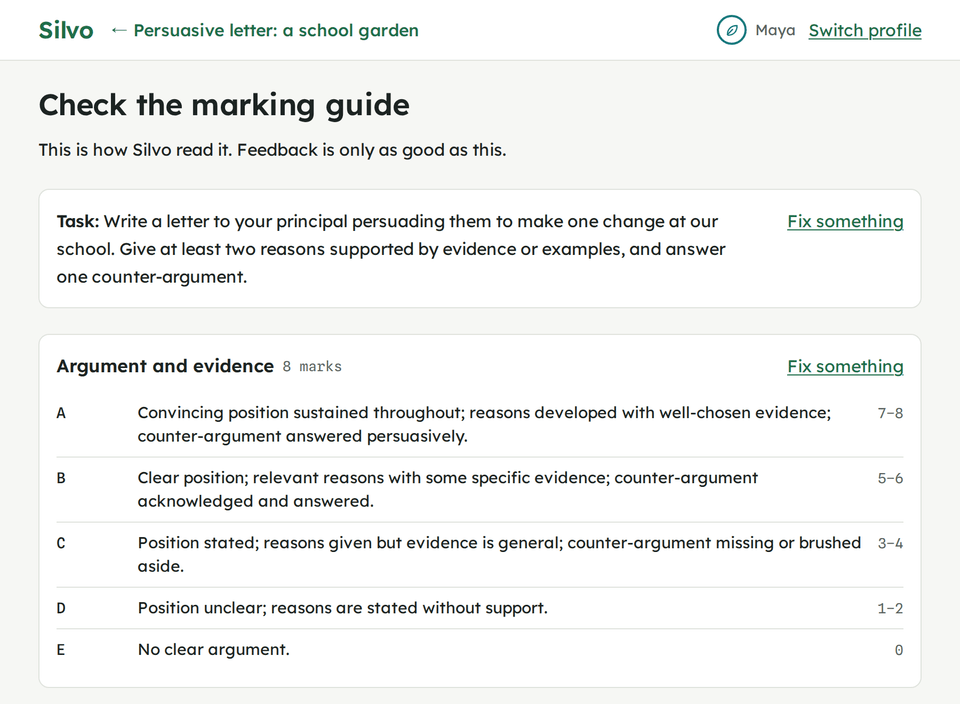
Add the marking guide and check what Silvo read
Your child names the assignment, picks the kind of writing, and adds the marking guide: the rubric, criteria sheet or task sheet from the teacher. Photos, a file or pasted text all work.
Silvo lays out what it read: the task, each criterion, its levels and marks. Your child checks it.Looks right moves on; Fix something edits it; This isn't my marking guide starts again. Nothing is marked until the guide is right.
Step 2 of 4
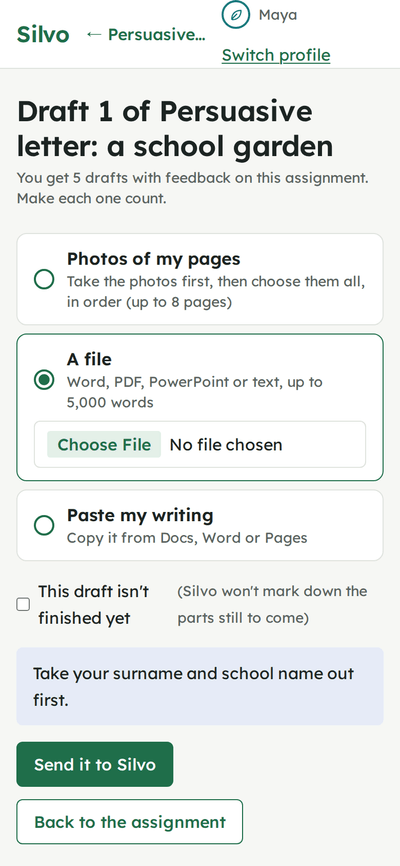
Send the draft: typed, as a file, or as photos of handwriting
A typed or pasted draft, a Word, PDF or slides file, or photos of up to 8 handwritten pages. The upload screen tells your child how many drafts with feedback the assignment has left.
If the draft isn't finished, a tick says so, and Silvo doesn't mark down the parts still to come.
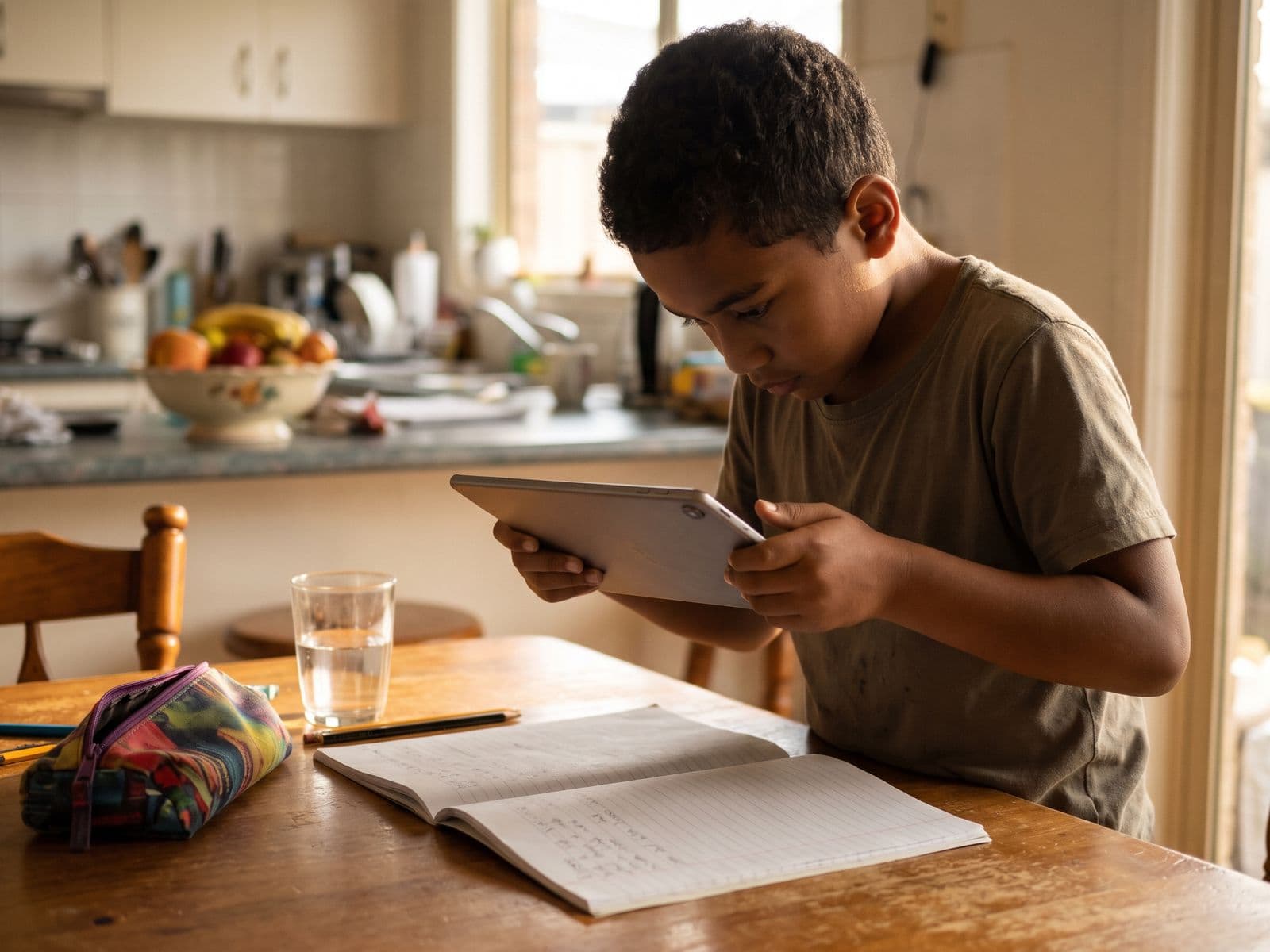
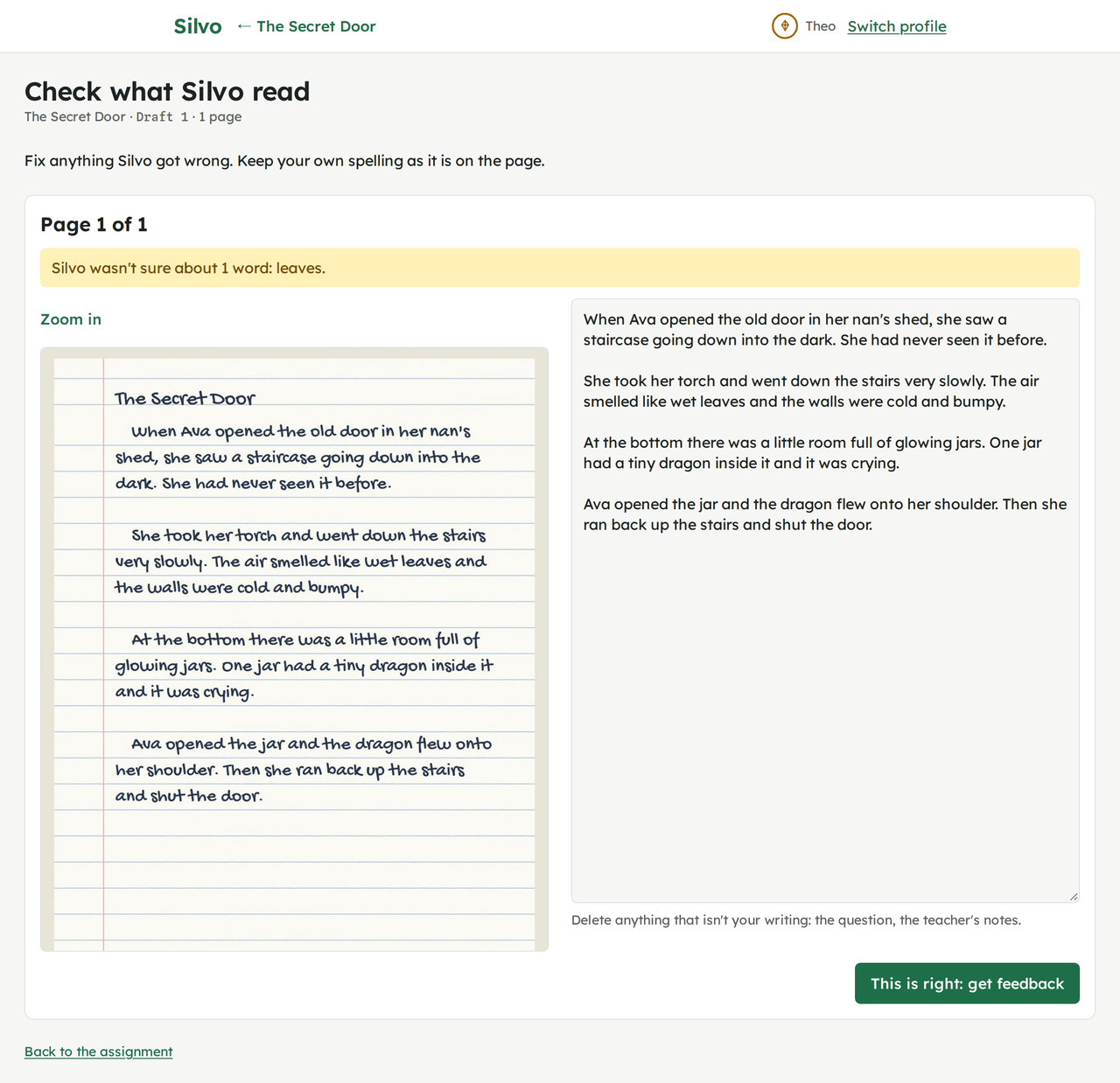
For a handwritten draft, your child checks the words first
Silvo shows each photographed page beside the words it read from it. Any word it wasn't sure of is marked, and your child fixes anything that's wrong before feedback is written.
Step 3 of 4
Read the feedback: the estimate, then what to do next
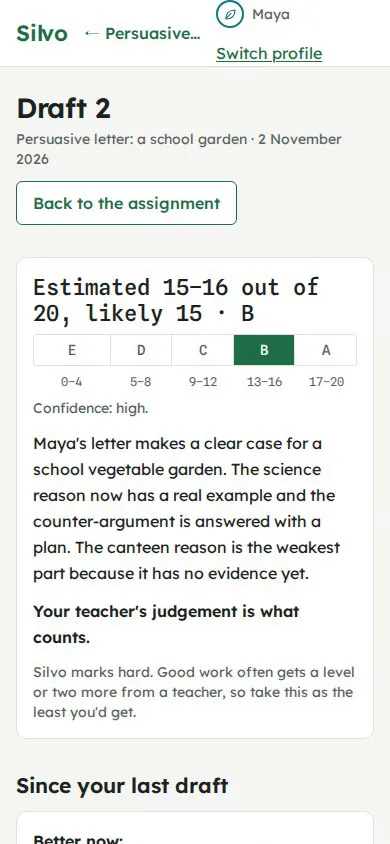
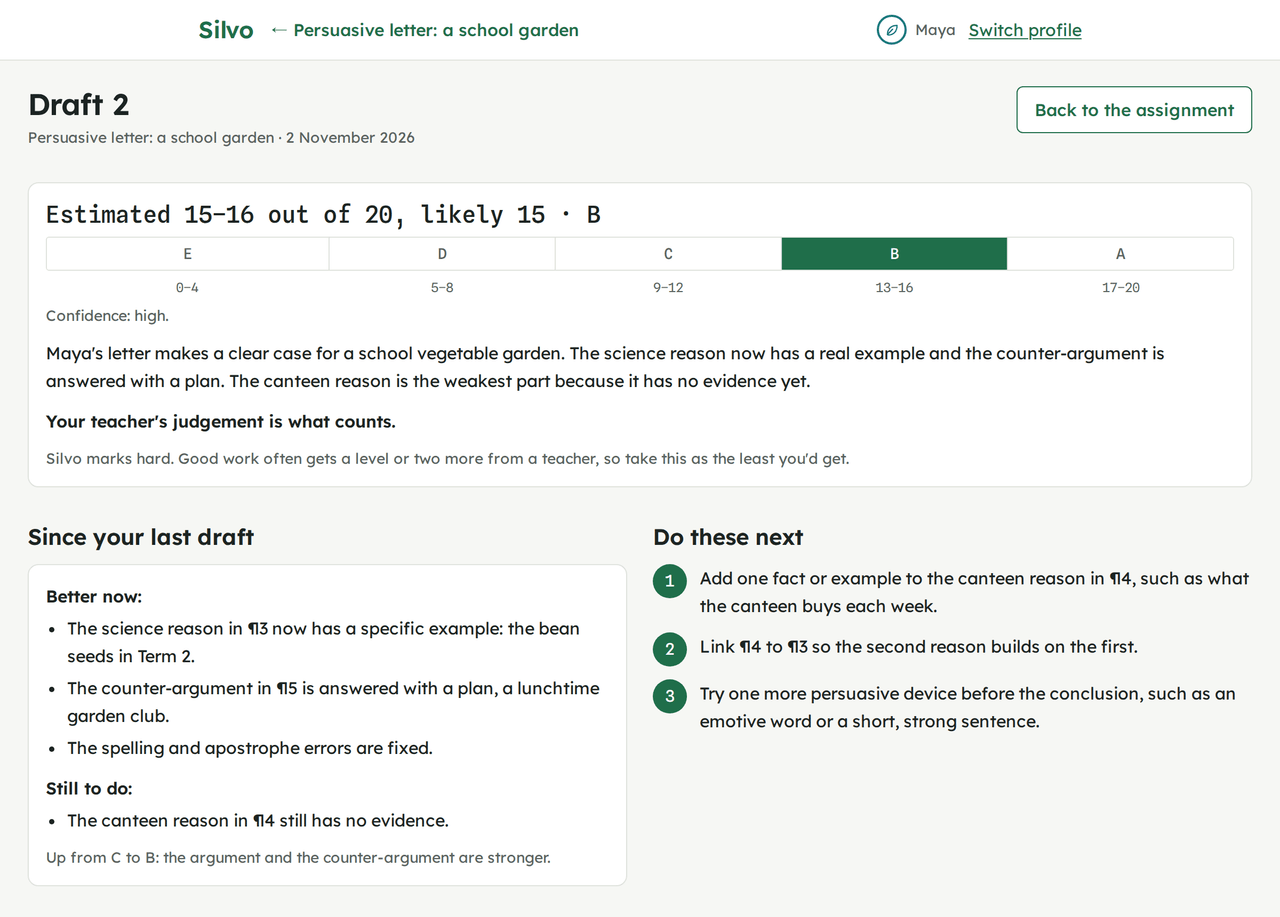
It usually takes about two minutes. The feedback opens with an estimated mark on the marking guide's own scale, shown as a range with how sure Silvo is, and a reminder that the teacher's judgement is what counts. Then what changed since the last draft, and Do these next.
The wording fits the year level
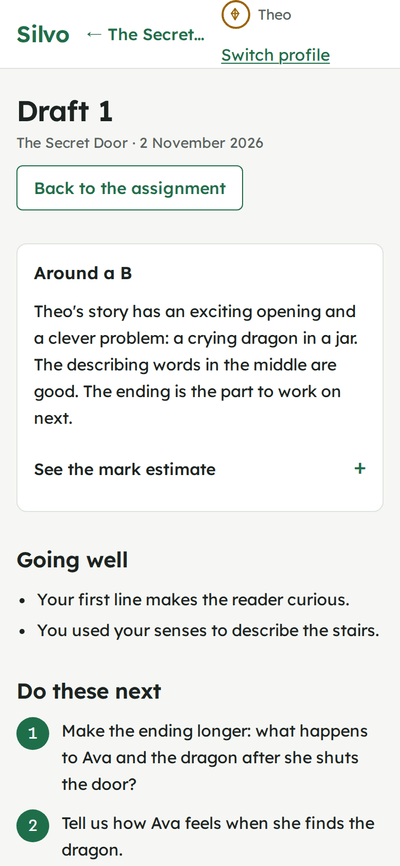
Years 3 to 6 read the estimate in words first ("Around a B"), then two things going well and two to do next, in everyday words. The detail is folded away.
Years 7 to 9 get the marking guide's terms with a short explanation. Years 10 to 12 get the guide's own language and command terms, criterion by criterion.
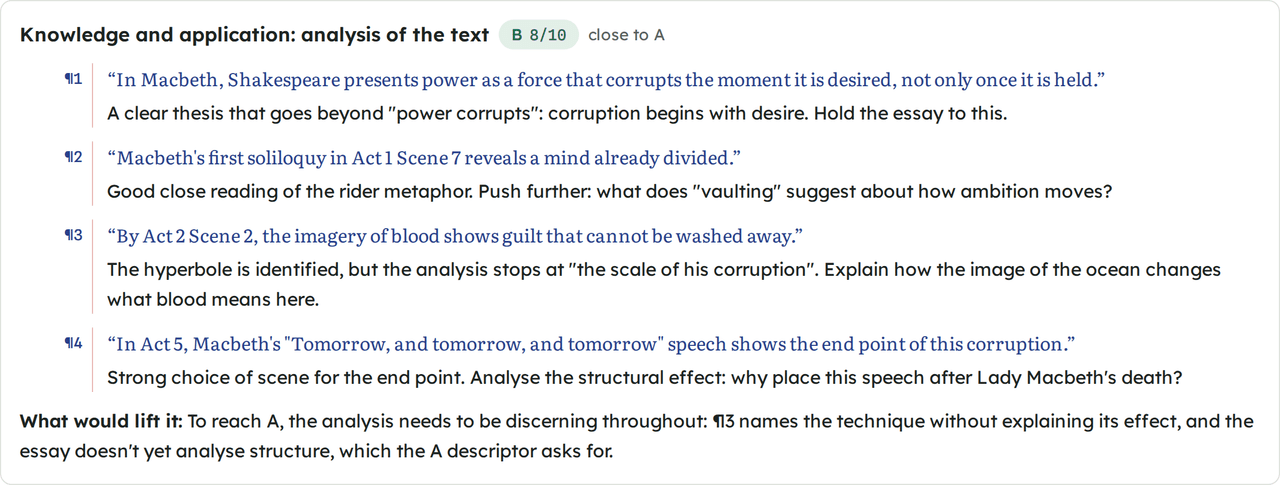
Step 4 of 4
Fix the top things and send the next draft
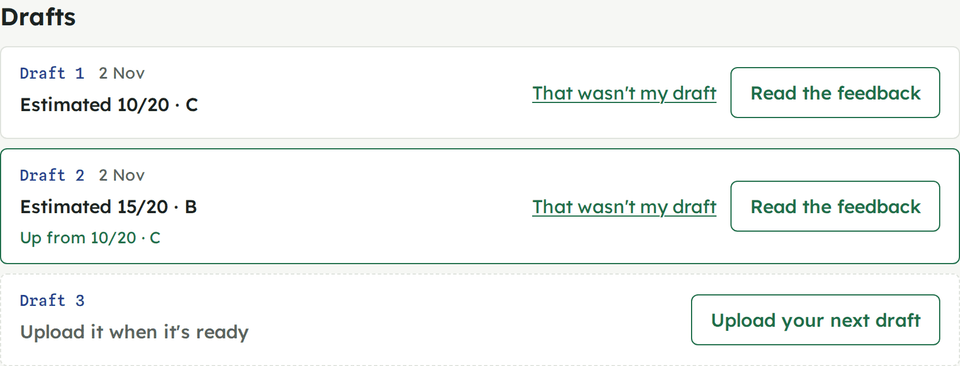
Each assignment has five drafts with feedback, and you can allow more. Each new feedback starts with what improved and what is still open. If a new draft is nearly the same as the last one, Silvo says how few words changed and lets your child decide whether to send it.
When the work comes back, your child can enter the teacher's mark beside Silvo's estimate.
What you do as a parent
You set up the family once and sign in on each device your children use. They pick their name; they never type your password. Your profile asks for your password and closes itself after 30 minutes idle, so a child who picks up your tablet gets the name picker, not your view.
Your Family page shows what needs you first, then each child. You can step into any assignment and do anything your child can.